When building an e-commerce or company website, you will likely need to display a list of products or services.
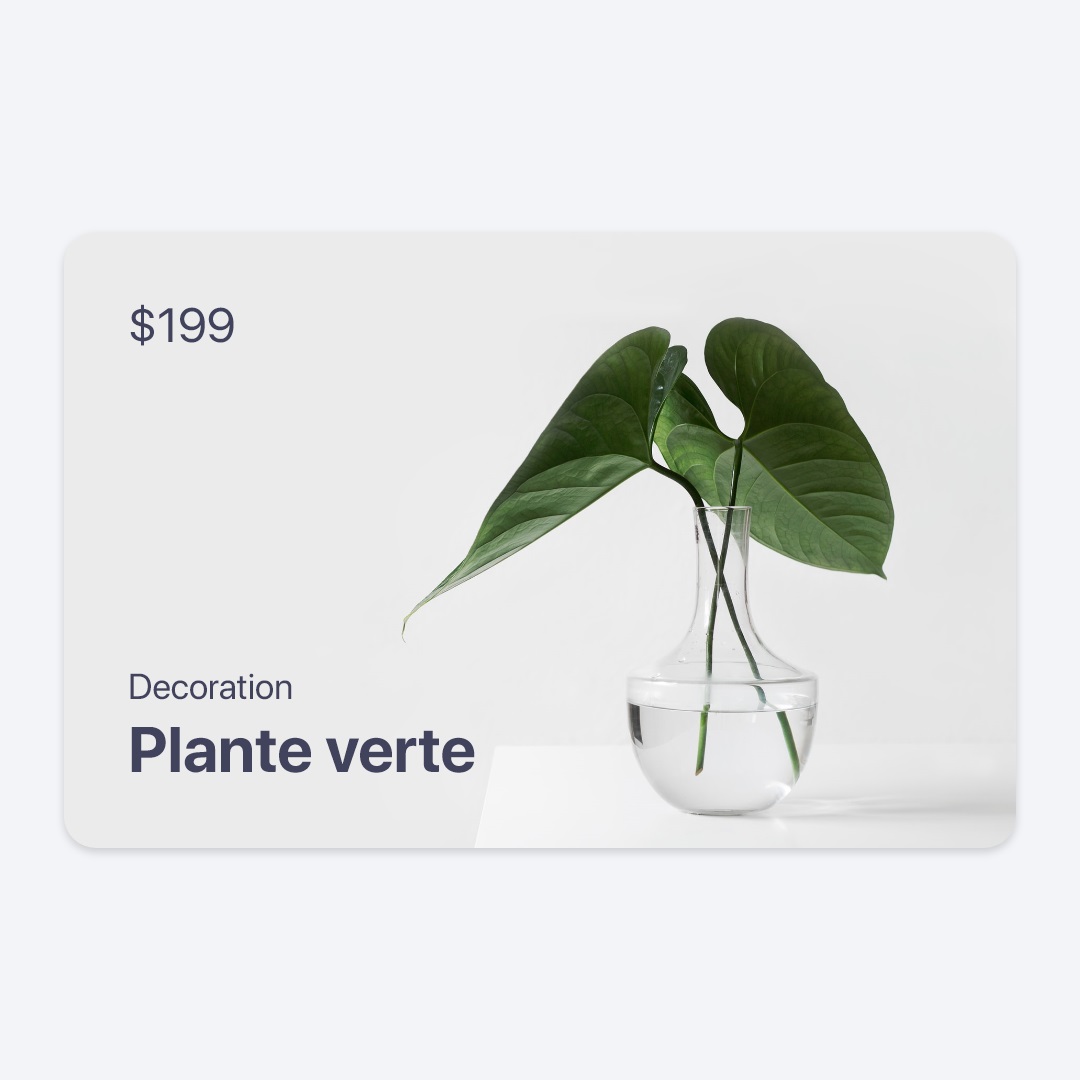
In this mini-tutorial, I will show you how to make a product card with CSS. The result will be as follows:
HTML Structure
Here is the basic structure in HTML:
<div class="card-product">
  <img class="card-img" src="leaves.jpg" alt="Card image ..." />
  <div class="card-top">
    <p class="price">$199</p>
  </div>
  <div class="card-bottom">
    <h4 class="category">Decoration</h4>
    <h3 class="title">Plante verte</h3>
  </div>
</div>
card-productis the main card wrapper.card-imgrepresents the product image.card-toprepresents what is displayed at the top of the card (the product price).card-bottomrepresents the elements at the bottom (the product name and category).
React
Here is the equivalent in React (TypeScript):
export default function ProductCard({
  name,
  price,
  category,
  imageUrl,
}: {
  name: string,
  price: number,
  category: string,
  imageUrl: string,
}) {
  return (
    <div className="card-product">
      <img className="card-img" src={imageUrl} alt="Card image ..." />
      <div className="card-top">
        <p className="price">${price}</p>
      </div>
      <div className="card-bottom">
        <h4 className="category">{category}</h4>
        <h3 className="title">{name}</h3>
      </div>
    </div>
  );
}
CSS
Here are the CSS rules we apply to these elements:
.card-product {
  display: block;
  border-radius: 1rem;
  overflow: hidden;
  color: #41425b;
  box-shadow: 0px 2px 4px rgba(0, 0, 0, 0.16);
  position: relative;
  aspect-ratio: 4/3;
  width: 22.5rem;
  background-color: #e1e1e1;
}

.card-product .card-img {
  position: relative;
  z-index: 0;
  width: 100%;
  height: 100%;
  object-fit: cover;
  display: block;
}

.card-product .card-top {
  position: absolute;
  z-index: 1;
  left: 1.5rem;
  top: 1.5rem;
}

.card-product .card-bottom {
  position: absolute;
  z-index: 1;
  left: 1.5rem;
  bottom: 1.5rem;
}

.card-product .price {
  margin: 0;
  font-size: 1.5rem;
}

.card-product .title {
  margin: 0.5rem 0 0 0;
  font-size: 2rem;
  font-weight: bold;
}

.card-product .category {
  margin: 0;
  font-size: 1.25rem;
  font-weight: normal;
}
For the main wrapper (card-product), we use the aspect-ratio CSS property to ensure all cards keep the same proportions. Here, we set its value to 4/3, but you can change it (e.g., 1/1 for a square card).
We use the relative value for the position property so that child elements with absolute positioning position themselves relative to this wrapper.
We also add a box-shadow to give the card an elevated appearance.
For the product image (card-img), we use the object-fit: cover declaration to prevent distortion. It is recommended to use an image with the same proportion as the card-product wrapper's aspect ratio.
card-top and card-bottom are absolutely positioned: one at the top (top: 1.5rem) and the other at the bottom (bottom: 1.5rem). We also include a z-index to keep them layered on top of the image.
Practice
As an extension or improvement of the project, you can try to use flexbox to distribute the layout of the card (card-top and card-bottom). You can also add animations (zoom of the image on hover for example).
I hope you liked this mini-tutorial.
Source
You can find the source code here.